This page provides guidance to help clients log support cases with complete and accurate information, enabling the StrataMax Support Team to resolve issues as quickly and efficiently as possible.
Prior to logging a Support Case, we recommend the following steps are taken:
- Consult with other staff and team members in your office, particularly if you are unfamiliar with a feature or process.
- Use the StrataMax Chatbot for immediate assistance with locating the relevant Online Help training resources.
- Search the StrataMax Online Help for applicable guidance or instructions.
- If the issue remains unresolved, compile the required information (outlined below) and email support@stratamax.com to submit a support case.
What to check if StrataMax is not responding?
This quick checklist can often resolve the issue or provide valuable information for the StrataMax Support Team.
- Close any open files or processes that may be preventing StrataMax from completing an action, such as reports, spreadsheets, Word documents, or mail merge letters.
- Restart StrataMax by closing and reopening the application to refresh the working date and apply any completed updates.
- Log off and back on again. If using Remote Desktop, ensure you log off completely rather than simply disconnecting.
- Check with colleagues in your office to see if they are experiencing the same issue, this determines if the issue is user-specific, computer-specific, or affecting multiple users.
- Check previous support cases to see if the issue has already been resolved. If a new case is required, include the previous case number and relevant details.
Who should log a case
In some offices, internal processes may require you to first discuss the issue with your system administrator. Larger offices may also have an internal IT team or engage an external support provider who uses their own case logging system. In these situations, you may need to report the issue to them first, and they may lodge the case on your behalf.
Regardless of who logs the case, it is essential that you provide as much detail as possible upfront. This ensures the case can be correctly assigned, reviewed, and resolved as efficiently as possible.
When to log a Case
If you have already used StrataMax Online Help and the StrataMax Chatbot, and are still unable to resolve your query, please ensure you have the appropriate internal authority to contact the StrataMax Support Team directly.
Once confirmed, email the Support Team at support@stratamax.com and include all required information outlined below to help us manage your request efficiently. We also recommend that other members and staff in your office are included, so they are aware of the issue. This saves time and resources in case they experience the same issue, they will know it has already been raised.
How to log a Case
All support cases must include:
- Client name (especially if multiple drives are in use).
- Subject Line - Building name and building number and brief description.
- What is the task being completed and expected result / outcome.
- Relevant section where the process is being performed.
- Specific steps taken.
- Clear and legible screenshots and/or supporting attachments showing relevant information.
- Any investigation already completed.
- Articles reviewed, Chatbot suggestions, Live Chat transcripts.
Providing complete and accurate details upfront helps ensure your case is reviewed and resolved as quickly as possible.
How to log an Error Case
If you are completing a process in StrataMax and the StrataMax Online Support error window appears like below, submit the error by typing the specific details in the error window and clicking OK. We also recommend that other members and staff in your office are notified, so they are aware of the issue. This saves time and resources in case they experience the same issue, they will know it has already been raised - and they do not need to submit the error again.
- Type in the steps taken to produce the error window, and precisely what occurred.
- Type in the Current Building Number if applicable.
- Ensure the Create care with StrataMax Support is ticked.
- Click OK.
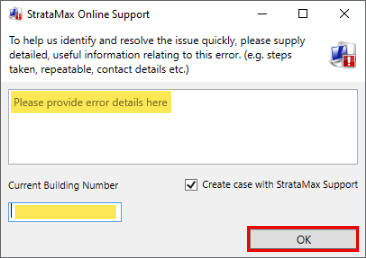
This sends the typed information, as well as a detailed log, directly to the StrataMax Support Team and automatically logs a case. A separate email is only required if you have additional information to provide. If there are additional supporting details, please email and advise that error details have already been sent and provide the additional information.
Do not send a screenshot of the error window, important diagnostic information is only included when the error is completed.
How to reply to a case
- Always use 'Reply All' to ensure that all relevant parties are included.
- Ensure that the subject contains all the details from the received email (use reply all) - i.e. case number / building name & number / subject / etc. with the same original formatting.
Logging a Support Case FAQ
Review the below FAQ for further assistance prior to logging a case.
Q. When should I log a Support Case instead of using Help or StrataMax Chatbot?
A. Log a Support Case when the issue requires data investigation, server or environment review, unexplained errors or transaction history review. StrataMax Online Help, Chatbot and Live Chat are best for instructions and locating the right article.
Q. What details should I include when it is an issue with a report?
A. Include the report name, building, date range, configuration or template used, expected output, actual output, screenshots and whether the issue occurs for one building, one user or all users.
Q. What details should I include when there is an access query for the StrataMax Portal?
A. Include the user email, building, lot. The role related to the access - committee / owner or non-owner office bearer. Any screenshots, investigation completed, including if the Owner View Access has been reviewed to assist with resolution.