In certain scenarios, data links should be used to support Roll data. These links connect sub‑group accounts to their corresponding accounts in the main building, or—in the case of multi‑OC (VIC) buildings—via a designated main contact link.
Considerations for Data Links using contacts:
- Contact Management should be used to clean contacts, removing duplicates so a single contact card can be used to manage Roll data.
- Roll Address and contact details will not update for linked lots if separate contact cards are used between the linked lots.
- Remove Data Links from buildings where the Ownership is the same contact card.
- Only consider Data Links when completing a Sub-Group or Multi OC (VIC) setup.
- Contact Preferences will not update across linked roll lots and must be managed individually.
- Do not link lot accounts if they are not owned by the same person.
Data Links Flags
The Lot account will flag as below to confirm that the Roll data is linked.

In Owner Info, a Linked icon (red square with yellow writing) will appear next to the Full Name field.

Debtor Maintenance, in the Sub-Group, when a debtor has been linked to the main Roll, it will be flagged as below.

Data Link Fields
The following information is updated when a change of details is actioned for a linked lot.
- Date of receipt of notice.
- Date Acquired.
- Car Space.
- Storage Space.
- Is Owner Occupied Flag.
- Roll Notes field.
- Comments.
- Linked Document.
- Updating of Contact Card Details (only to debtors, as owners should be using the same contact card).
- Adding any additional roll-type contacts.
- Correspondence Preference for Corro and or levies to be sent to an Agent, Mortgagee or Other.
- Advertising OK.
- Send Notice and Send Minutes of Committee Meeting.
Changing Ownership and Data Links
If there is a data link between two or more lot accounts and one of these lots is now owned in a different name, the newly acquired lot account should be unlinked to allow the new ownership to apply. If there is a subgroup within the building and the billing is applied to owners, consider this before unlinking the accounts. The yellow warning 'linked' is displayed in the Lot area when data is linked to another account.
- Search or select Roll. In the Account Code List, select the relevant lot and click OK.
- In the Roll screen, click Change Ownership button.
- Refer to the existing contact information and from the Action drop down, make a selection.
- Ignore: Keep the data link in place.
- Remove Link: Remove the data link.
- Apply Change: Applies the new owner details to the linked account once the change is processed (recommended).
- Click Next to begin the change of ownership process.

Add a single Data Link
- Search or select Roll and select the lot from the lot selection screen.
- Click the Data Links button at the bottom of the Roll screen.
- Within the 'Data Links' window, click the Add button in the bottom right.
- In the 'Building Selection' screen, locate and select the building, and click Select.
- If linking to a Sub-Group building, expand the Filters and use the 'Sub-Group' drop-down to select the required type.
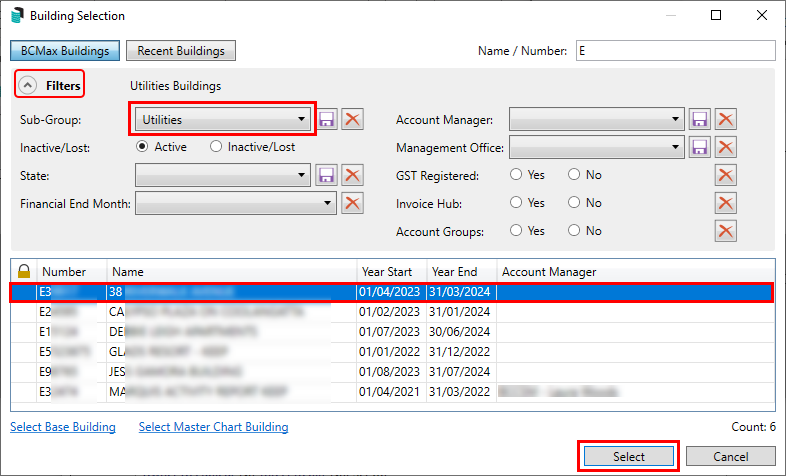
- If linking to a Sub-Group building, expand the Filters and use the 'Sub-Group' drop-down to select the required type.
- In the 'Account Code List' screen, tag the lot/s that need to be linked, then click OK. If the names are different, a warning prompt will appear. Click OK if ready to link.
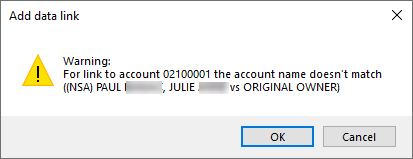
- Any selected lots will now appear in the 'Data Links' screen.
- Click Close, and in the Roll screen there will be a yellow notification in the 'Lot' section saying 'Linked'.
View Data Links
This displays any existing data links within the building.
- Search or select Roll and select any lot in the lot selection screen.
- Click the Data Links button at the bottom of the Roll screen.
- In the 'Data Links' window, tick the Show All box.
- Any existing links in the building will now be displayed in the screen.

Remove Data Links
This should be done prior to processing a Change of Ownership on a lot that is part of a link. It can also be completed as a separate action with the below steps where required.
- Search or select Roll, and in the lot selections screen, select the lot and click OK.
- Click the Data Links at the bottom of the Roll screen.
- In the 'Data Links' window, the existing linked lots will be displayed with the 'Master' link in the Main building at the top, noted with a yellow star in the left hand column. This cannot be deleted and only lots beneath this one can be.
- Click the Delete (red 'X') button next to the required linked lot.
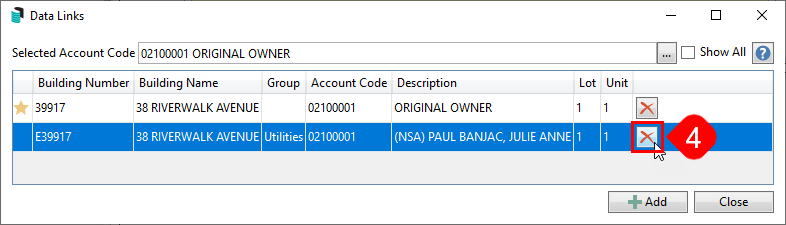
- Click Yes when prompted.
- Click Close to close the 'Data Links' screen.
Data Links Between Records in Main Roll
Any established data links from a main group to another property's main group should be replaced using the contact card methodology. First, identify which properties and lots have been linked.
- Unlink the Roll data as per the steps above.
- Ensure the same contact card is used on both lots (so that the same owner information is maintained across any lots that this contact card is selected for).
- Review the delivery preferences and any agents / other contact types on each, as they are set individually per lot account.
Troubleshooting
In some cases, the data link between the main group and the other linked lot may refer to a different contact. This can happen if the data links were not originally set up correctly. If this does occur, make a small edit in the main contact, for example, a . in a field and save this change. This will refresh the data links and should update the area that may refer to an incorrect contact.
