|
The instructions in this article relate to Merge Letters. The icon may be located on your StrataMax Desktop or found using the StrataMax Search. |
Letters can be created in StrataMax, with merge fields that refer to data from different areas of StrataMax. These letters are initially created and then edited using Microsoft Word (or Notepad in very specific, small number of cases). These letters can then be distributed to a number of different contact types such as, but not limited to owners, office bearers, creditors, etc. This is also available from Sub-Groups and will use other debtors.
During their distribution, all of these reports and documents will process through StrataMax without using Microsoft Word, allowing for efficiency in processes for single or multiple buildings.
Merge letters can include additional reports, ranging from building and financial reports to lot-specific reports. If these are frequently used, you can save and number of documents and reports into a "report set", to be used in the future.
The merge fields that can be inserted, are divided up into different categories and can be searched for from within the Merge Field Editor window. It's also possible to rename the merge fields to a more meaningful description that can assist with the creation process.
Merge Letters | Features
- Automatically print an owner welcome pack, including the StrataMax Introduction Letter for new and existing owners.
- Apply documents to be building-specific and review lists for the current building only, or a global list of documents.
- Merge documents for single or multiple buildings using each contact’s delivery preference.
- Merge and edit a document for specific scenarios before distributing the letter or report.
- Merge multiple documents and reports from StrataMax to create a "Report Set", which can be used again & again.
- A large variety of contact filters and delivery preferences to ensure documents & reports are sent to the right recipients with the desired method (email, print, SMS, Bing Mail), including owner-occupied, VIC Account Groups (Multi OC), intro letters not sent.
- Integration with Disbursements for automatic charging for pages printed or emails sent, including attachments.
- Ability to automatically save documents & reports to DocMax with configurable profiles, linking to specific lot accounts where applicable.
- Save documents & reports to lot accounts that can be viewed afterwards in the Roll.
- Merge Letters are available to be used in a Sub-Group.
- Send documents & reports via email as single files or separate attachments using the Report Distribution window.
Merge Letters | System Requirements
Microsoft Word must be installed with a valid license on any computer to create, edit, or generate documents. StrataMax will support Word and the versions that Microsoft actively supports. To check and confirm what versions are supported, please check the official Microsoft Office website.
Merge Letters | Security Setup
Delete Merge Letter
This will enable access to delete merge letters from the Merge Letter List window.
Edit Letter
Access to this function will enable the ability to edit merge letters from the Merge Letter List window.
Exclude Lots with Zero Entitlements
Will exclude any lots with a zero entitlement when merging and printing/sending any letters. Both Contribution and Interest Entitlements must be 0 (zero) for the lot to observe this setting. This setting also affects the Meeting Hub Document Distribution screen.
Availability of this setting also depends on the permission in the Security Setup screen called 'Set Exclude Lots With Zero Entitlements', which is set to Deny by default.
Merge Letters | Report Selection
Upon opening Merge Letters you will be presented with the 'Report Selection' window. This section of the article provides and overview of this window.
- Use the Search field at the top to search the report or document name, as well as the comments (added in the 'Merge Letters List' window).
- At the bottom, there is a Merge Letters Only box, which is ticked by default, so that only the 'Merge Letters' folder is visible. By unticking the box, more folders will appear with their respective report and documents.
- Open or close each of the folders by clicking the tiny triangle next to them, or double-clicking the folder or the name.
- Each report or document type is represented by an icon. Hovering your mouse over the icon will present a tool tip.
 Shows Report Data for the individual contact. This document or report contains Roll contact card merge fields and is specific to the lot.
 Shows Report Data for the selected account. This type of document or report is specific at the lot level and does not rely on Roll contact cards.
 Shows Report Data across all buildings. This type of document or report does not contain roll-specific merge fields.
 Shows Report Data for the individual contact. This document or report contains Roll contact card merge fields and is specific to the lot.
 Shows Report Data for the selected account. This type of document or report is specific at the lot level and does not rely on Roll contact cards.
 Shows Report Data across all buildings. This type of document or report does not contain roll-specific merge fields.
 Shows Report Data for selected buildings. This type of document or report does not contain roll-specific merge fields.
 Shows Report Data for selected buildings. This type of document or report does not contain roll-specific merge fields.
- The Merge Letters button will open the 'Merge Letters List' window, where you can highlight the required document or report.
- Click the Select button once you have highlighted the required document or report. This will close the 'Report Selection' window and add the report or document to the 'Report Distribution' screen.
- The Cancel button can be clicked to close the 'Report Selection' window without selecting a specific report or document, and will present the 'Report Distribution' window.
Merge Letters | Bing Mailroom Considerations
The Bing EasyPost API sends documents and reports to contacts using their BingMail Customer Portal. For further information on how this third-party area works, please refer to this article here.
To print to Bing ensure the printer is set to Bing Easy Post API and the option Use Bing for Print is ticked.

The BING login credentials can be checked/entered from the Printer settings.

Enter the BING provided credentials into the fields as below.

Merge Letters | Log
Using the Log screen, you can locate previously sent merge letters and attachments, which can then be resent to an Owner or Building if necessary.
- Search or select Merge Letters..
- Click Cancel to the report selection screen.
- Click Log to review the Search Report Distribution Logs window.
- Apply restrictions for date/ time, buildings and any other relevant search parameter.
- Click Refresh to view results.
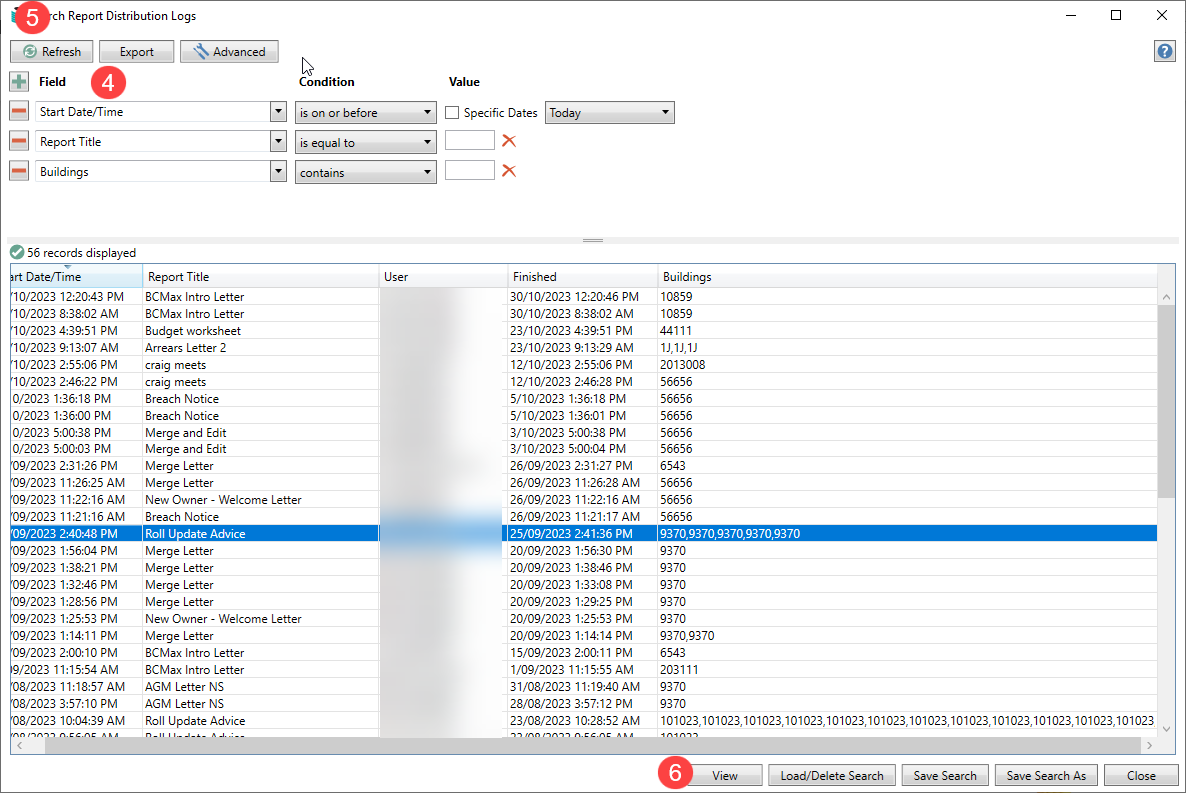
- Select the required mailing from the list and click View to view the distribution(s).
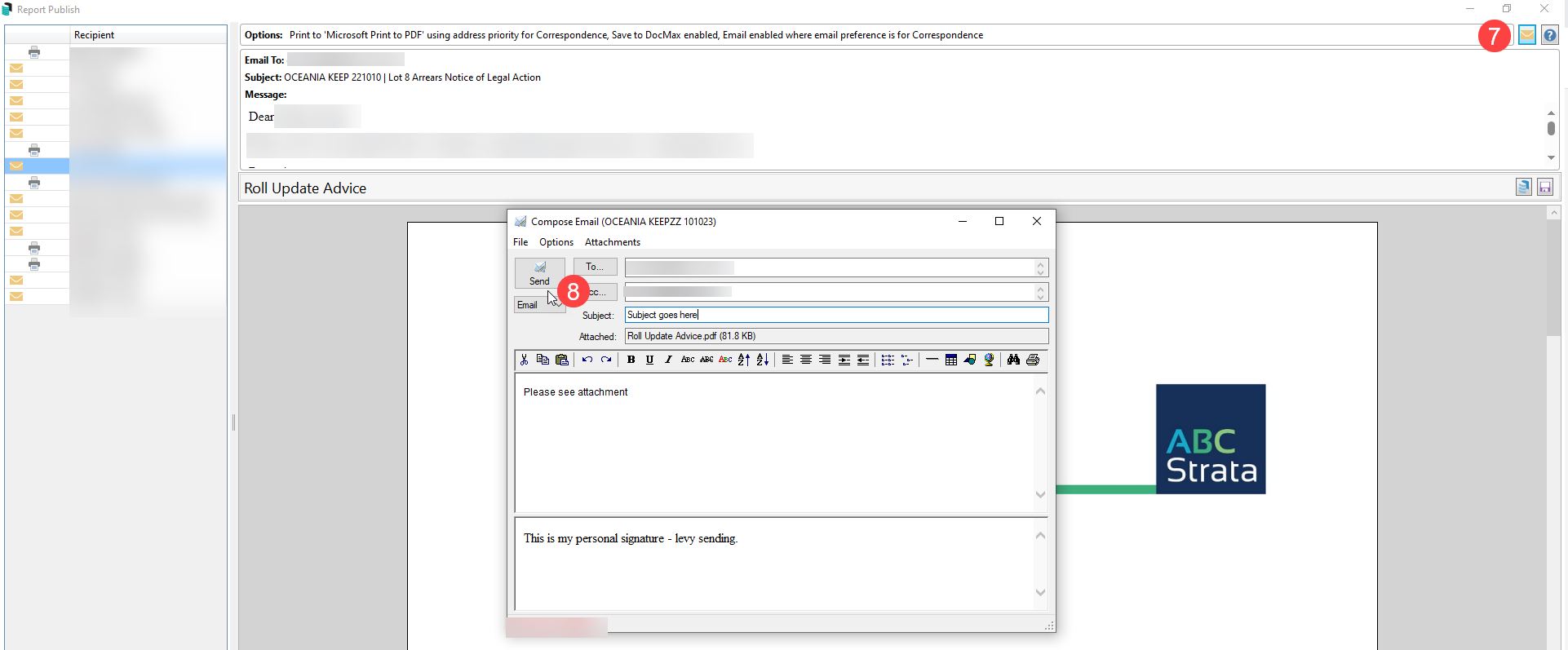
- If required to resend information, click the required recipient and click the Email icon. Use the To... button to select from the Owners list.
- Select the Owner, add a subject and click Send to resend this information.