|
|
The Voting Register is a report that can be used as a permanent record of motions passed, and for assistance with preparing minutes. There is also a template available for a Meeting Summary. This menu does not integrate with Meeting Hub, including the Offline Voting Register.
Meeting Summary
The Meeting Summary produces a summary of account balances for use at meetings. The report shows details of lot number, unit number, account number (021...), owner's name (from the Reference field in the Roll), entitlements (based on what is set in the field 'Voting Entitlements' in Building Information), Admin paid to date, any arrears and the total balance owing.
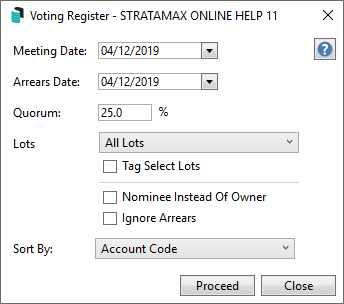
- Search or select Voting Register (Meeting Summary).
- Enter the Meeting Date, which is the date of the meeting - normally in the future.
- Enter the Arrears Date, which is the date that the system will use to stop calculating due levies, or the meeting date whichever is sooner (the arrears date cannot extend past the meeting date).
- Change Quorum percent if required.
- This figure is updated automatically from the Quorum Percent field in Building Information, and will be changed to that figure each time the Voting Register screen is opened.
- Tick if required Nominee instead of Owner.
- Tick if required Ignore Arrears.
- Click Proceed.
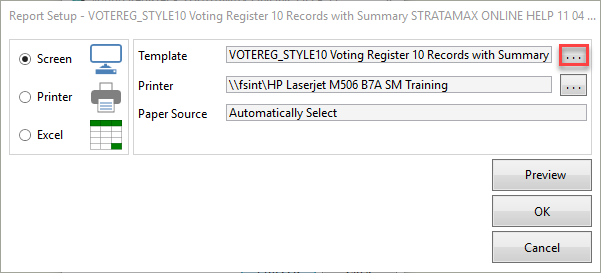
- Click the ellipsis [...] button to open the 'Template Selection' window.
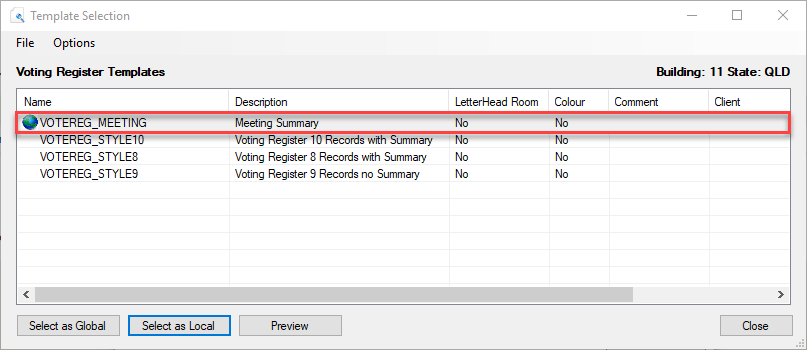
- Select 'Meeting Summary' (VOTEREG_MEETING) and click either Select as Global to apply this template to all buildings or Select as Local to apply this template just to the current building. The appropriate icon will appear to the left under the 'Name' column to indicate that the template is either global or local.
- Click Close to close the 'Template Selection' window and then click OK in the 'Report Setup' screen to produce the report.
Voting Register
The Voting Register produces a Voting and Attendance Register for use at meetings. The report shows details of Lot Entitlements (based on what is set in the field Voting Entitlements in Building Information), Arrears Balance, Nominee (taking into account the period allowed under the Act for voting eligibility), Mortgagee and Proxy.
The register can be used to assist in preparing minutes and as a permanent record of motions passed.
- Search or select Voting Register (Meeting Summary).
- Enter the Meeting Date.
- Enter the Arrears Date. The Arrears Date will calculate any Arrears from the set 'Arrears Date' to set 'Meeting Date' to determine eligible voters.
- Change Quorum percent if required.
- This figure is updated automatically from the Quorum Percent field in Building Information, and will be changed to that figure each time the Voting Register screen is opened.
- Tick if required Nominee instead of Owner.
- Tick if required Ignore Arrears.
- Select either All Lots, Committee Only or Committee (Owners Only).
- Select the Sort By preference.
- Click Proceed.

- Click the ellipsis [...] button to open the 'Template Selection' window.
- Select one of the Voting Register templates - VOTEREG_STYLE 10, 9, 8 and click either Select as Global to apply this template to all buildings or Select as Local to apply this template just to the current building. The appropriate icon will appear to the left under the 'Name' column to indicate that the template is either global or local.

- Click Close to close the 'Template Selection' window and then click OK in the 'Report Setup' screen to produce the report.


- Arrears Date - The Arrears Date option will calculate Arrears from the set 'Arrears Date' to the set 'Meeting Date' to determine eligible voters.

Voting / Meeting Register - Account Group Selection
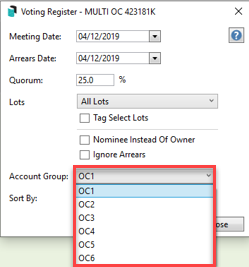
A Voting Register can be produced for the relevant Account Group in Multi OC properties. To select the Account Group that will appear on the report use the following steps:
- Search or select Voting / Meeting Register.
- Click the drop down arrow next to Account Groups.
- Click the relevant option.